
Guide to Shopify variant SEO. Learn how to rank individual product variants using unique URLs, canonical tags, ProductGroup markup, and sitemaps.
Key Takeaways
- To get individual product variants to rank on Google, each needs its own indexable URL and unique content. Shopify's default canonical prevents this.
- Shopify serves every variant from one product URL and canonicalises the ?variant= parameter to the base product, so variants share a single page.
- Keep variants consolidated when they share search intent. Split them into separate listings when each has its own demand, content, and keywords.
- Separate product listings give each variant a dedicated URL, title, meta description, and images- the on-page elements a variant needs to rank.
- Use ProductGroup and Product structured data, linked by variesBy, hasVariant, and productGroupID, so Google sees that separate pages are variants of one parent.
- Add every variant you want indexed to your XML sitemap, give it a self-referencing canonical, and monitor it in Google Search Console.
- Measure variant SEO at the URL level: track impressions, clicks, and average position per variant URL in Search Console, not just the parent.
Can Shopify Product Variants Rank Individually On Google?
To get an individual product variant to rank on Google, give it its own indexable URL with unique content, and tell Google how it relates to the parent product. On Shopify, a variant selected with the ?variant= parameter will not rank on its own, because Shopify canonicalises it to the base product URL. You have two real routes. Either override the canonical in your theme so the variant URL becomes self-indexing, or split the high-value variant into a separate Shopify product with its own handle, title, description, and images. You then group the separate products into one shopping experience with combined listings or swatches, so customers still see them as a single product while Google sees distinct, rankable pages.
The rest of this guide explains when each route is right, how to implement it correctly, and how to mark up variants with ProductGroup structured data so Google understands the relationship. If you only take one idea away, take this one: ranking a variant is a URL and content problem first, and a structured-data problem second.
Why Product Variants Struggle To Rank On Google
Shopify was built to treat a product and its variants as one unit. When a shopper picks a colour or size, Shopify adds a query parameter to the product URL rather than loading a new page. The URL for a medium variant looks like this:
/products/classic-tee?variant=12345678901
The page content, the product title, and the meta description stay the same. Only the price, image, and availability change on screen. From Google's point of view, nothing about the page has meaningfully changed, so the parameter URL is a near-duplicate of the base product page.
Shopify then resolves this cleanly for deduplication. Its themes add a canonical tag that points every variant URL back to the base product URL without the parameter:
<link rel="canonical" href="https://yourstore.com/products/classic-tee">
That canonical tag is the right default for most stores. It consolidates ranking signals, link equity, and crawl attention onto one URL, and it stops Google indexing every colour and size combination as a separate page. The side effect is the one that frustrates merchants. If you want the red tee and the blue tee to rank for "red classic tee" and "blue classic tee" as distinct results, the default canonical works against you, because it tells Google to treat both as the same page as the parent.
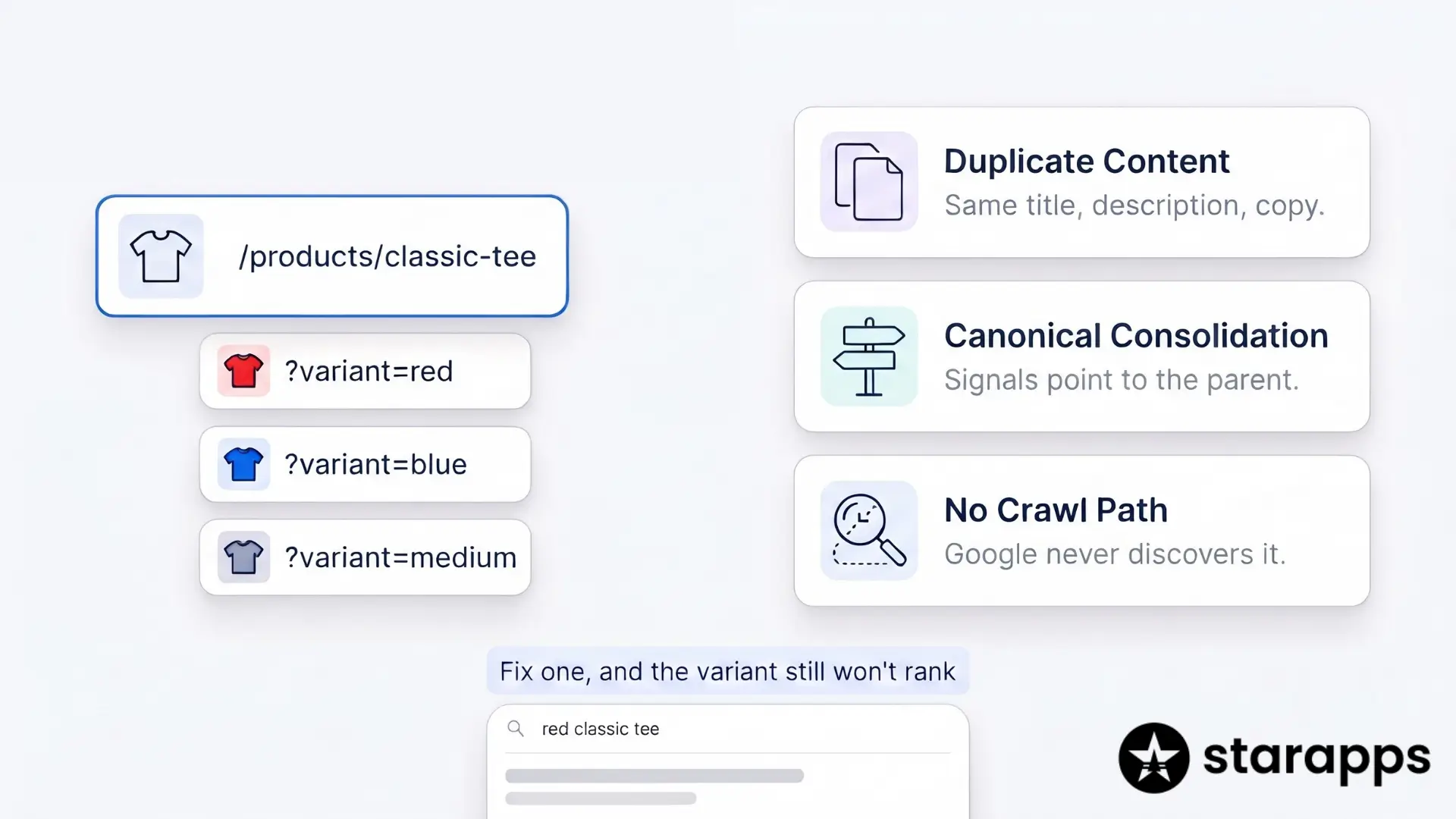
There are three reinforcing reasons a variant does not rank on its own under the default setup:
- Duplicate content: Every variant URL serves the same title, description, and body copy. There is no unique page for Google to rank for a variant-specific query.
- Canonical consolidation: The canonical tag actively points signals away from the variant URL and towards the parent, so even if Google crawls the variant URL, it will not index it separately.
- No crawl path: Variant parameter URLs are usually reached only by selecting an option in the browser. They are rarely linked in a crawlable way, so Google may never discover them as candidates for indexing in the first place.
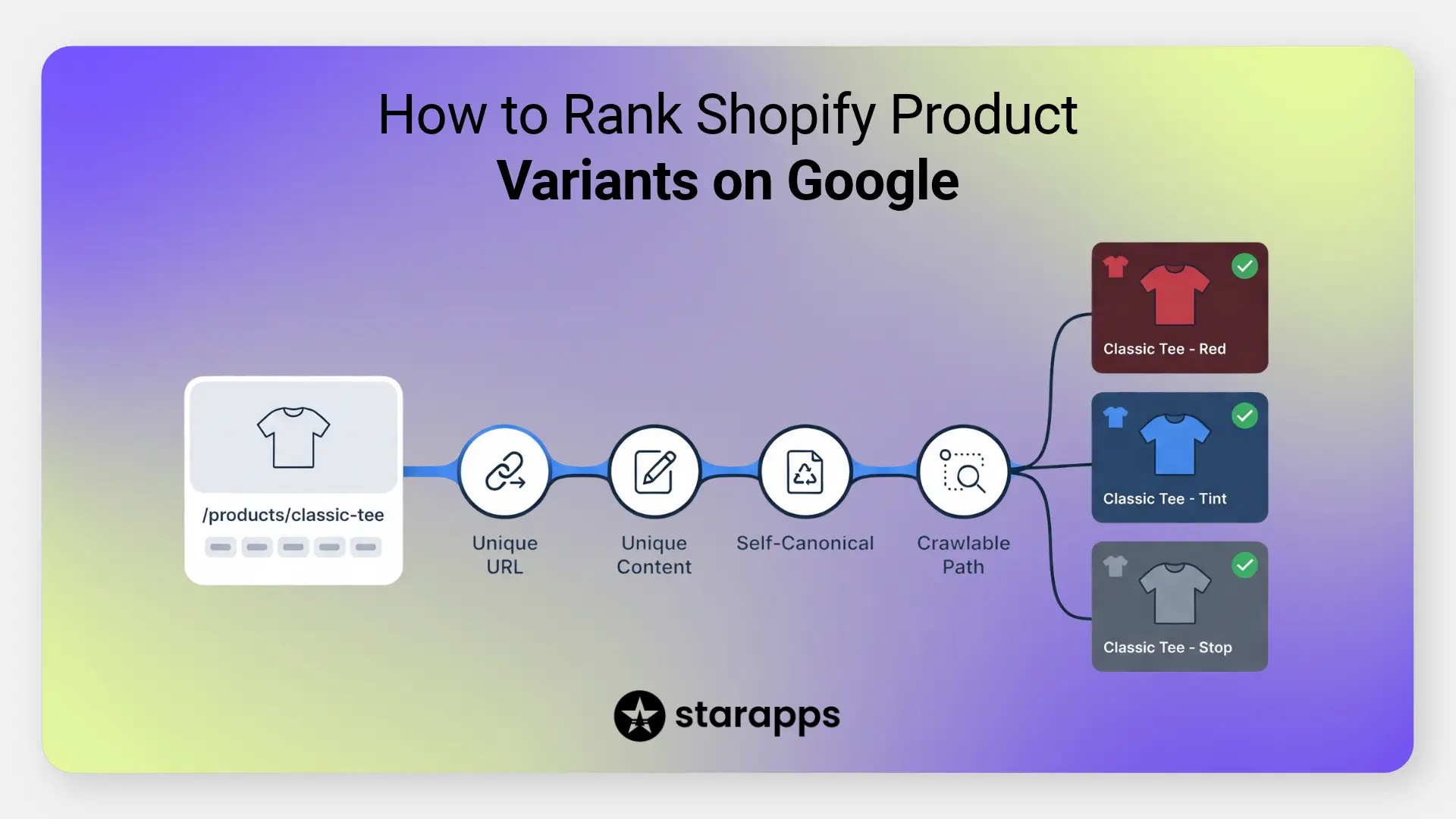
Fix only one of these and the variant still will not rank. A variant ranks when it has a unique URL, unique content, a canonical that supports indexing, and a crawlable internal link. The following sections cover each in turn.
Product Page Vs Variant URL vs. Indexable Listing
These three terms get used interchangeably, which is where most confusion starts. They are not the same thing, and the distinction decides whether a variant can rank.
A product page is the home of the product. It has one handle, one title, one description, and a canonical that points to itself. This is what ranks today for your main product keyword.
A variant URL is not a separate page. It is the product page with a query parameter that tells Shopify which variant to preselect. The parameter changes what the shopper sees, not what Google indexes. Because the canonical points back to the clean product URL, the variant URL is a selection state, not a destination in search.
An independently indexable listing is a genuine, separate page. It has its own handle, its own title tag and meta description, its own body content, its own images, and a canonical that points to itself. Only this third form can win a variant-specific search result, because only it gives Google a distinct page with distinct content to rank.
The practical takeaway: a ?variant= URL will never be your rankable asset. To rank a variant, you either promote the variant URL to a self-indexing page through a canonical override, or you create a separate listing. Both paths turn a selection state into a destination.
Canonical Tags For Variants: Consolidate Or Separate?
The canonical tag is the single most important control in variant SEO. It is a hint to Google that says, "when you find near-duplicate URLs, treat this one as the master." Google honours it as a strong signal, though it can choose a different canonical if your other signals disagree.
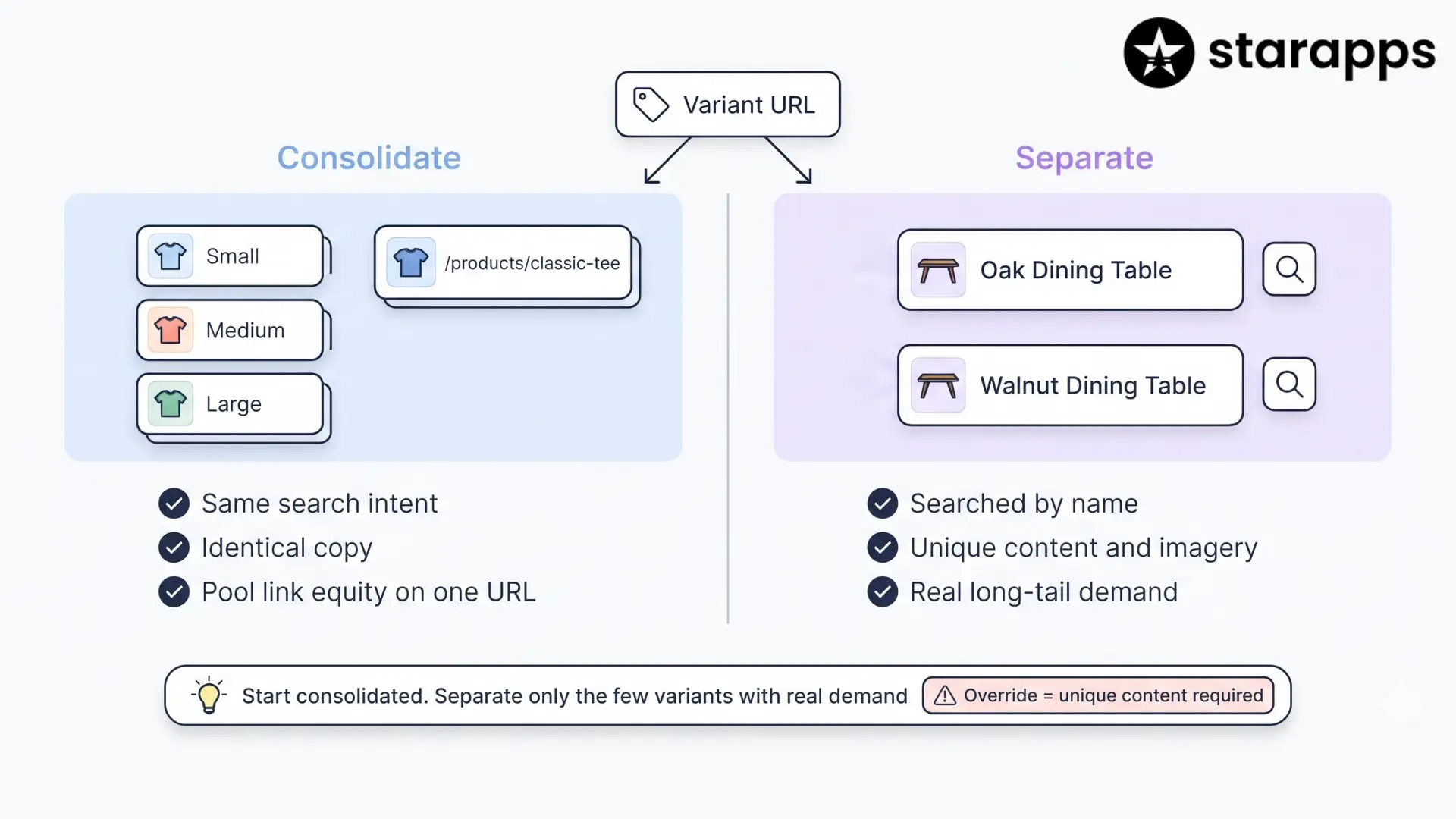
Shopify's default behaviour is to canonicalise variant URLs to the base product URL. For the majority of catalogues, you should leave this alone. Consolidating is the right call when your variants share the same search intent.
Consolidate (keep the default canonical) when:
- Variants differ only by size, or by a colour nobody searches for specifically.
- The product copy would be identical across variants.
- You would be creating thin, near-duplicate pages with no unique demand behind them.
- You want all your link equity and authority pooled on one strong product URL.
Separate (give the variant its own indexable page) when:
- People search for the variant by name, such as "oak dining table" versus "walnut dining table".
- The variant has genuinely different content: different specifications, materials, use cases, or imagery.
- The variant represents a distinct product in the shopper's mind, even if your catalogue stores it as an option.
- There is real, measurable long-tail demand you are currently leaving on the table.
There is a middle option many stores miss. You do not have to split a product to let a variant self-index. You can override the canonical in your Shopify theme so that each variant URL points to itself instead of the parent. The logic lives in theme.liquid file or the product template, where Shopify builds the canonical URL. Overriding it makes the ?variant= URL eligible for indexing in its own right.
Be deliberate here. A canonical override without unique content per variant just creates duplicate pages that compete with each other, which is worse than the default. Only override the canonical when each variant URL also carries unique, variant-specific content. If you cannot write genuinely different content for a variant, it does not deserve its own indexable page, and consolidation is the correct answer.
A practical rule of thumb: start consolidated. Identify the handful of variants with real independent demand. Give only those variants their own indexable pages, through a canonical override or a separate listing, and leave everything else pooled on the parent.
How To Create Dedicated URLs For Product Variants
There are two ways to give a variant its own crawlable, indexable URL on Shopify. Choose based on how different the variant really is.
Option 1: Override the canonical so the variant URL self-indexes
This keeps the variant inside the parent product but makes its parameter URL eligible to rank. In your theme, locate where the canonical is generated and change it so a selected variant points to itself rather than the base product.
{% if template contains 'product' and product.selected_variant %}
  <link rel="canonical" href="{{ product.url }}?variant={{ product.selected_variant.id }}">
{% else %}
  <link rel="canonical" href="{{ canonical_url }}">
{% endif %}
This approach is lighter to set up, but it comes with real conditions. The variant URL must serve unique content, you must link to it in a crawlable way, and you must add the variant URLs to your sitemap. Without those, you have created duplicates rather than rankable pages. It also keeps you tied to the ?variant= parameter format, which is less clean than a descriptive handle.
Option 2: Split the variant into a separate product
This is the stronger route for variants with genuine independent demand. You create each high-value variant as its own Shopify product, which gives it everything a rankable page needs:
- A clean, descriptive handle, for example /products/cloudstride-trail-shoe-black rather than a parameter.
- Its own title tag and meta description, targeting the variant-specific keyword.
- Its own fully written product description.
- Its own image set and image alt text.
- A self-referencing canonical by default, with no theme edit needed.
The obvious objection is that splitting products breaks the unified shopping experience. A shopper on the black shoe page cannot see the other colours, and your catalogue fills with what look like unconnected products. That is a real problem, and it is exactly what combined listings and grouping apps solve, covered later in this guide. You split the products for SEO, then group them on the storefront so customers still experience one product.
Which option to choose
Use the canonical override when you have a modest number of variants, you can write unique content for each, and you want to avoid restructuring your catalogue. Split into separate products when variants have strong independent demand, need substantially different content, or when you also want each variant to appear as its own card on collection pages and in Google Shopping. For most stores, the honest answer is a mix: split the few variants that truly earn it, and leave the rest consolidated.
How To Optimise Variant Titles, Meta Descriptions, And Images
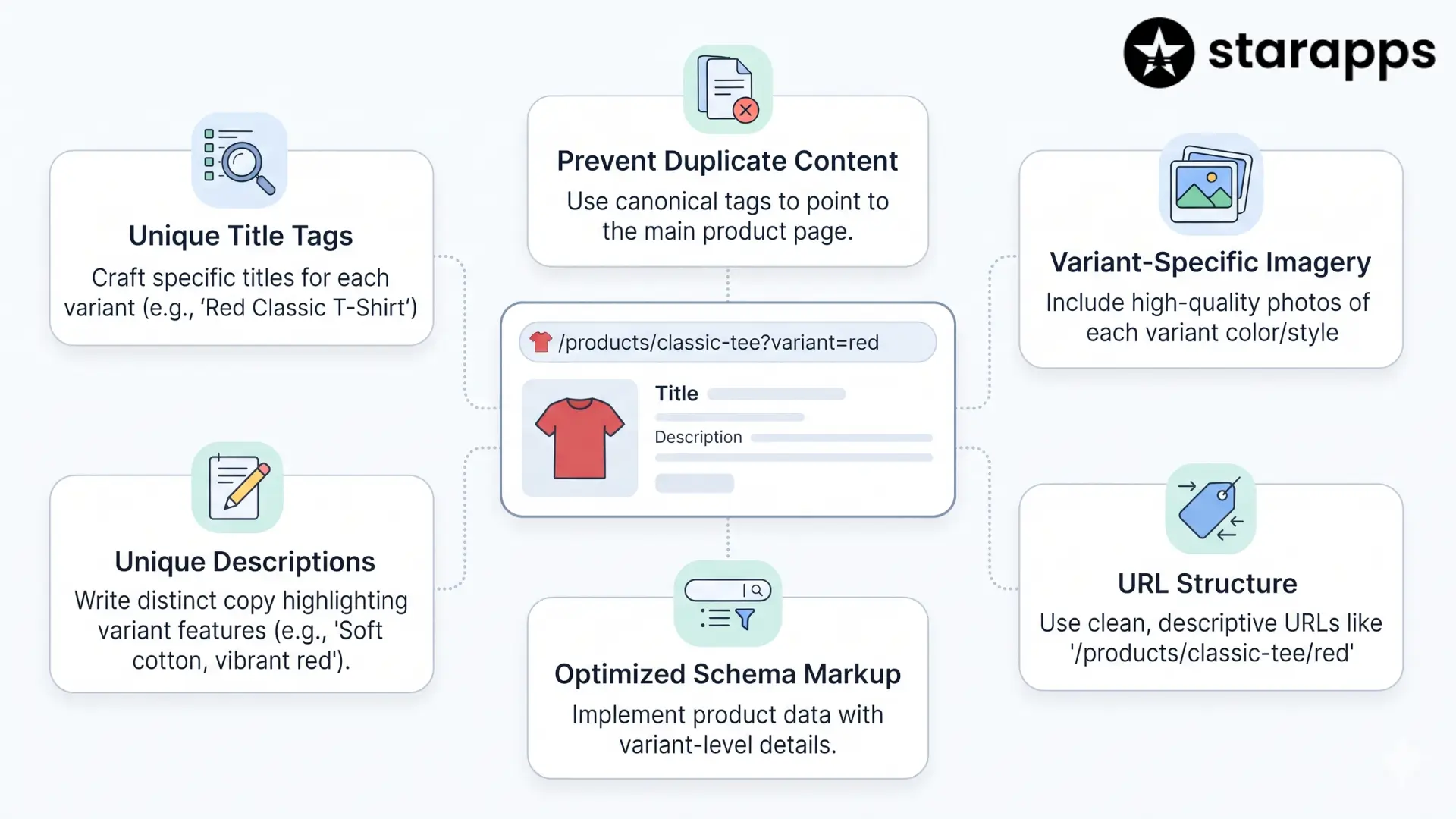
A dedicated URL only ranks if the page content matches the variant-specific query. A separate page with duplicated parent content is still a duplicate. Each element below should speak to the specific variant.
Title tag: Lead with the variant attribute that people search for. "Walnut Dining Table, 6-Seater" beats "Dining Table, Walnut" if "walnut dining table" is the query. Keep it under about 60 characters so it does not truncate.
Meta description: Write a variant-specific description that mentions the distinguishing attribute and gives a reason to click. Do not reuse the parent description across every variant. Keep it to roughly 150 to 160 characters.
Product description: This is where most variant pages fail. Write genuinely different body copy for the variant. Describe what makes the walnut version different: the grain, the tone, the rooms it suits, the care it needs. If the only difference you can write is the colour word swapped in one sentence, the variant probably does not deserve its own page.
Images and alt text: Use images of the actual variant, not the parent's hero shot. Give each image descriptive alt text that includes the variant attribute, which helps both accessibility and image search. Name the image files descriptively before upload where you can.
Headings: Use the variant attribute in the H1 and in at least one H2. The H1 on a separate listing should name the specific variant, not the generic product.
URL handle: On a separate product, use a clean handle that includes the variant attribute, for example walnut-dining-table-6-seater. Avoid stuffing; one clear mention of the attribute is enough.
A quick test for whether a variant earns its own page: open the parent page and the proposed variant page side by side. If more than about 70 percent of the visible text is identical, you are creating a duplicate, not a variant page. Either write more distinct content or consolidate it back to the parent.
Internal Linking And Crawl Discoverability For Variant Pages
Google can only index a variant URL it can find. A variant preselected by a JavaScript dropdown, with no crawlable link pointing to it, is effectively invisible. Discovery is the step most variant SEO plans forget.
To make variant pages discoverable, give Googlebot real links to follow:
- Link variants from the parent page. On the parent product, include anchor links or swatches that are genuine <a href> links to each variant URL, not JavaScript-only click handlers. Googlebot follows HTML links; it does not reliably trigger onclick events.
- Show variants on collection pages. When each colour or style is a separate product, it can appear as its own card on collection pages. That gives every variant a crawlable internal link from a high-authority page and more visual presence in your catalogue.
- Cross-link related variants. From the walnut table page, link to the oak and the white versions. This passes relevance signals, helps discovery, and keeps shoppers in the family.
- Keep variants in the sitemap. Internal links help discovery, but the XML sitemap is your direct signal to Google that these URLs exist and matter.
There is a crawl-budget angle too. If you expose thousands of ?variant= URLs through crawlable links but canonicalise them all to the parent, you can waste Google's crawl attention on URLs that will never be indexed. Be intentional: expose crawlable links to the variant URLs you want indexed, and avoid flooding the crawler with parameter URLs you are consolidating anyway. For a store with many options per product, that discipline matters more than it sounds, because Google may crawl many parameter URLs just to discover the single one you actually want indexed.
ProductGroup and Product Structured Data For Variants
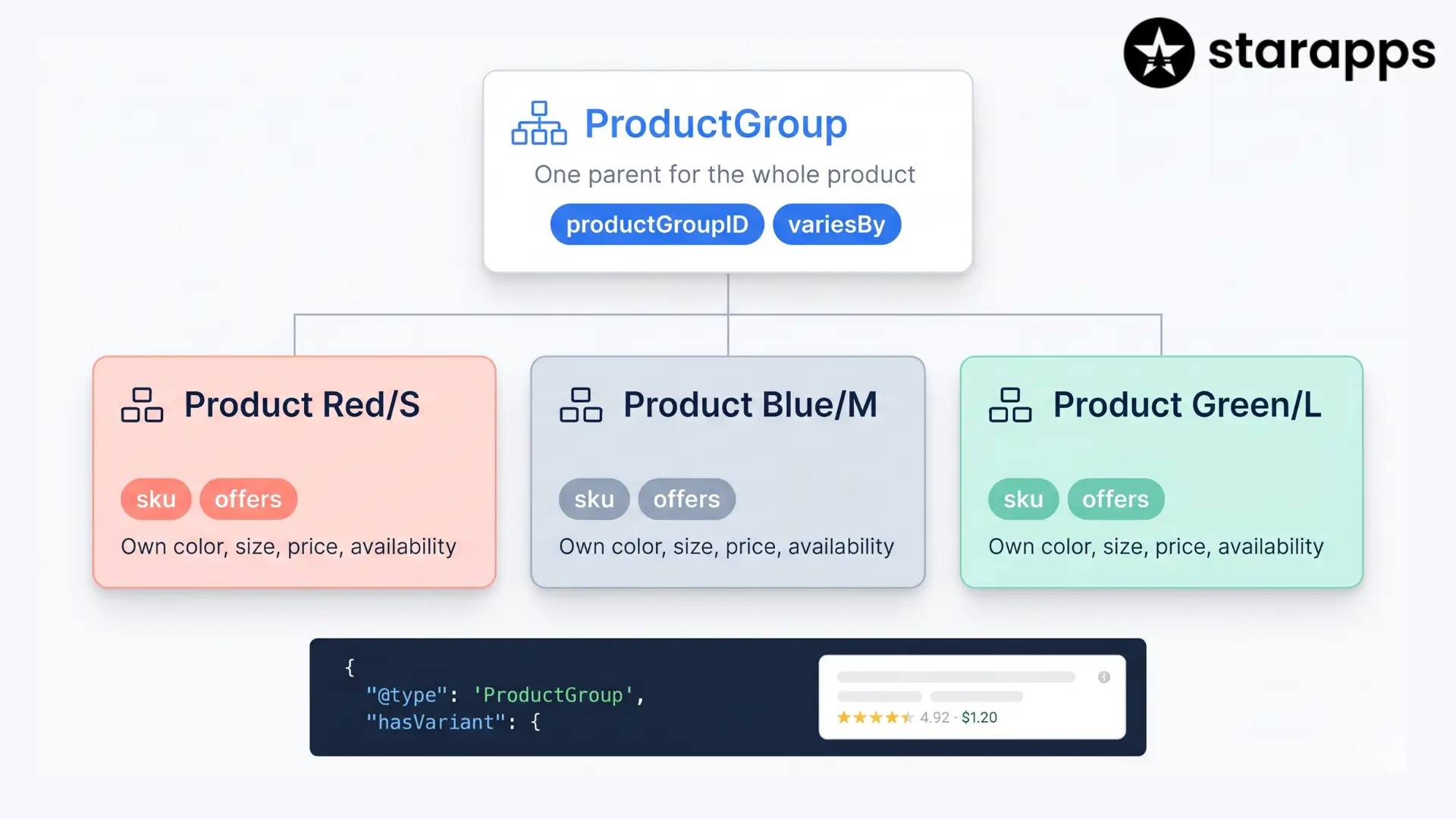
Structured data does not make a variant rank, but it helps Google understand that your separate pages are variants of one parent product. Google's documentation on product variant structured data uses the ProductGroup type alongside Product to group variants, and adding this markup can make your products show with variant information in merchant listings.
The relationship is built from three linked properties. ProductGroup is the parent. Each variant is a Product. They connect through variesBy, hasVariant, and productGroupID.
The parent carries what every variant shares, such as brand and the productGroupID. Each variant carries what makes it distinct: its own URL, SKU, colour, and size.
Required and recommended ProductGroup properties
Google's documentation sets out what each entity needs:
- ProductGroup requires name. Recommended properties include brand, description, productGroupID, variesBy, hasVariant, aggregateRating, review, and url (single-page sites only).
- variesBy lists the attributes the variants differ by. Google supports color, size, suggestedAge, suggestedGender, material, and pattern, each referenced by its full schema.org URL.
- productGroupID is the parent SKU. Provide it on the ProductGroup, or on each variant using inProductGroupWithID. If you provide both, they must match.
- Each Product variant must carry a unique identifier such as sku or gtin, plus the standard merchant-listing or product-snippet properties.
Google describes two ways to structure the markup, and both are valid. You can nest the variants inside the parent with hasVariant, which Google recommends as the most compact representation. Or you can define the variants separately and have each one reference its parent with isVariantOf, which some content management systems generate more easily.
Google's technical guidelines for variant markup
Two rules from Google's guidelines are easy to miss and important for Shopify stores:
- Each variant must be preselectable by its own distinct URL, using URL query parameters, for example .../winter_coat?size=small&color=green. This lets Google crawl and identify each variant. Preselecting means the page shows that variant's image, price, and availability, and lets the shopper add it to the cart. This is the structured-data version of the same point this whole guide makes: a variant needs a real URL.
- For single-page sites, there must be one distinct canonical URL for the overall ProductGroup, usually the base URL with no variant preselected. For multi-page sites, this does not apply, because no single URL represents the group, so the full ProductGroup definition is repeated on each variant page.
A note for Shopify specifically. Google warns that Product markup generated by JavaScript can make shopping crawls less frequent and less reliable, which matters for fast-changing data like price and availability. Put the Product structured data in the initial HTML rather than generating it client-side wherever you can do so.
A minimal ProductGroup markup example
{
  "@context": "https://schema.org/",
  "@type": "ProductGroup",
  "name": "Wool winter coat",
  "url": "https://example.com/coat",
  "brand": { "@type": "Brand", "name": "Good brand" },
  "productGroupID": "44E01",
  "variesBy": ["https://schema.org/size", "https://schema.org/color"],
  "hasVariant": [
    {
      "@type": "Product",
      "sku": "44E01-M11000",
      "name": "Small green coat",
      "color": "green",
      "size": "small",
      "offers": {
        "@type": "Offer",
        "url": "https://example.com/coat?size=small&color=green",
        "price": 39.99,
        "priceCurrency": "USD"
      }
    }
  ]
}
Always validate your markup with Google's Rich Results Test and the URL Inspection tool before relying on it, and remember that structured data makes variants eligible for richer listings but does not by itself make them rank.
Indexing Variant URLs: Sitemaps And Search Console
Creating a rankable variant page is not the end. You need Google to index it, and you need to confirm that it did. This is where many variant projects quietly fail, because the pages exist but never get indexed.
XML sitemaps: Every variant URL you want indexed must appear in your sitemap. When you split variants into separate Shopify products, they are added to your product sitemap automatically. When you rely on a canonical override for ?variant= URLs, you must make sure those specific URLs are included. A URL that is not in the sitemap and not well linked may never be discovered. Submit your sitemap in Search Console, and use the Sitemaps report to confirm Google is reading it.
Self-referencing canonicals: Confirm that each variant page you want indexed has a canonical pointing to itself. If a variant page still canonicalises to the parent, Google will consolidate it away, and it will not rank, no matter how good the content is. Check the live page source and the rendered DOM, not just the template.
URL Inspection tool: For each important variant URL, run it through the URL Inspection tool in Search Console. This tells you whether the page is indexed, which canonical Google selected (its choice, not just yours), and whether anything is blocking it. The Google-selected canonical is the figure to watch. If Google picked a different canonical than you declared, that is your signal to investigate.
Pages report: Use the Pages report, formerly Index Coverage, to spot patterns across many variant URLs at once. The statuses to watch for are "Duplicate, Google chose different canonical than user", "Crawled, currently not indexed", and "Discovered, currently not indexed". These three tell you that Google found your variant pages but decided not to index them, usually because the content is too similar to the parent or to each other. That is a content problem, not a technical one, and it sends you back to writing more distinct variant content.
Request indexing, then wait: After publishing, you can request a recrawl through the URL Inspection tool. Google is clear that recrawling and reindexing take time, often several days after a page is published. Do not judge results in the first week.
When To Keep Variants Under One Product Vs Split Them
This is the decision that drives everything else, so it deserves a clear framework. Ask whether each variant has its own independent search demand and its own distinct content. The answer puts you in one of three setups.
Keep variants under one parent when the variations are minor, the content would be identical, and nobody searches for the variant by name. A plain cotton T-shirt in eight colours is the classic case. Splitting it would create eight thin, competing pages for no gain. Consolidation keeps your authority pooled and your catalogue clean.
Split into separate listings when each variant has genuine independent demand and distinct content. Think different wood finishes on furniture, different scents or formulations, different models in a range, or colours that are themselves strong search terms. Here the variant is really a product in the shopper's mind, and a single shared page caps your reach at one keyword when you could rank for several.
Choose a combined listing when you want the SEO independence of separate products but refuse to sacrifice the shopping experience. This is the setup most growing stores land on, because it resolves the central tension. Each variant is a separate, indexable product with its own URL and content, and the storefront presents them as one product with swatches. Customers see a single, clean product page. Google sees distinct, rankable listings.
The cost of splitting is real and worth naming. You take on more products to manage, more inventory records, and more content to write. Do not split a variant you cannot write unique content for, and do not split at a scale you cannot maintain. Split the variants that earn it, and group them well.
Combined Listings: Group Separate Products, Keep Each URL
The hardest part of a variant-level SEO strategy is the trade-off at its centre. Separate products rank better, but they fragment the shopping experience. Combined listings resolve it, and this is where StarApps helps directly.
Shopify has a native Combined Listings feature, but it is gated to Shopify Plus, which puts it out of reach for most stores. SA Variants: Combined Listings by StarApps provides the same capability on any Shopify plan, and it is built for Shopify. It addresses the two jobs this guide has been building towards.
It splits variants into separate, SEO-ready products. The app splits product variants into standalone product listings, and each split variant gets its own variant-specific product title, variant images, descriptive variant URL, and variant description. That is exactly the set of on-page elements a variant needs to rank independently, created without manual catalogue surgery. It also lets you exceed Shopify's native variant limits, which matters for large catalogues.
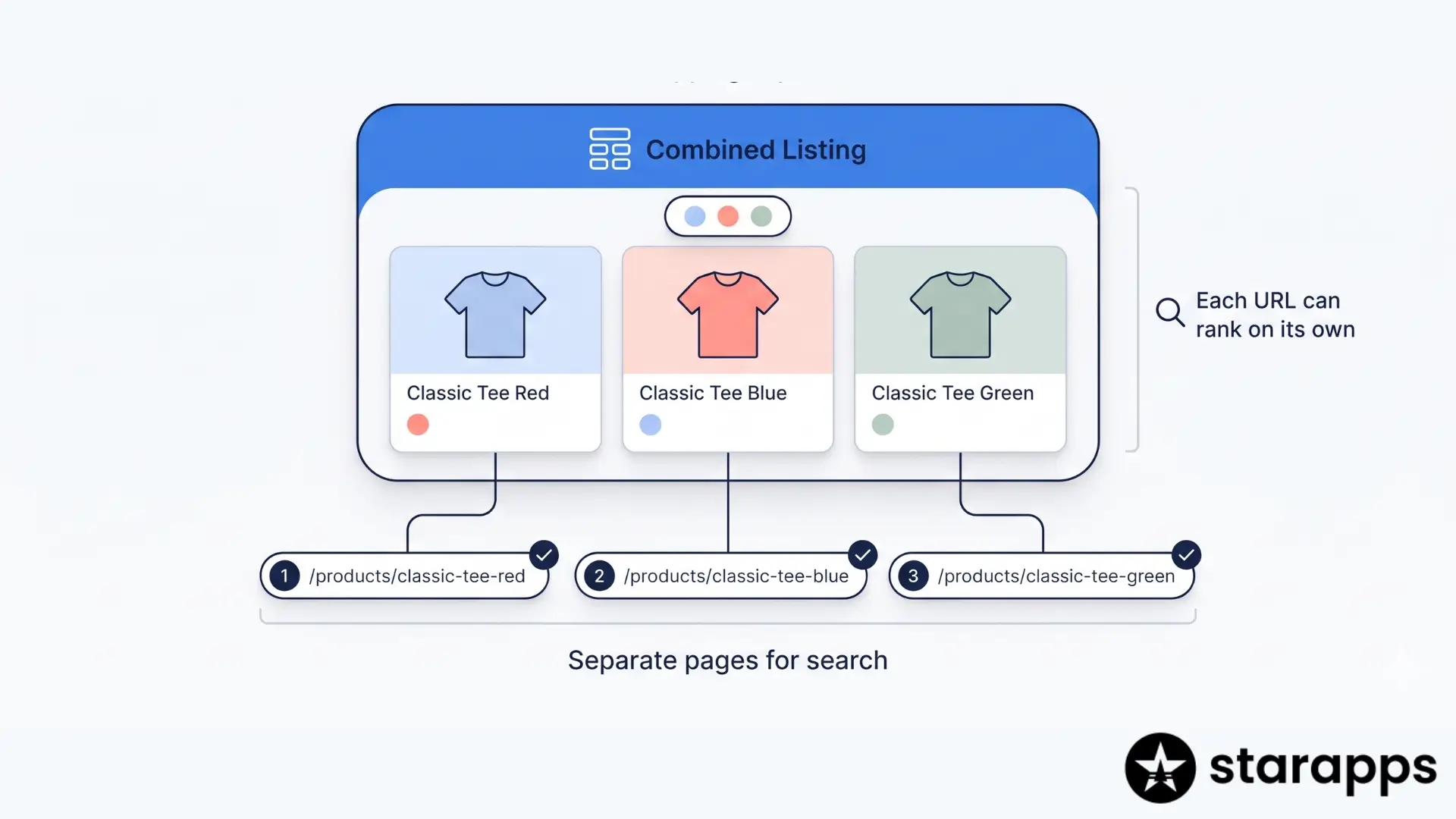
It groups those products back into one shopping experience. You create product groups that connect the separate products, like Shopify combined listings, and present them with colour swatches and variant image swatches. Customers browse what feels like one product and switch between options with a swatch, while each option keeps its own URL, content, and SEO identity underneath. The app also surfaces variants on the collection page as swatches, so each one gains visual presence and a crawlable internal link from a high-authority page.
The net effect maps onto the strategy in this guide. You get distinct, indexable URLs per variant with unique titles, descriptions, and images, which is what ranking requires. And you keep a single, unified product journey for shoppers, which is what conversion requires. You get the SEO of separate products without the fragmented storefront that usually comes with them.
StarApps builds a focused set of variant tools that pair well with this approach. Swatch King renders variant options as colour, image, or text swatches. Variant Image Automator assigns the correct images to each variant automatically, so a split variant shows its own imagery with less manual work. You can see the full range on the StarApps products page.
To be clear about scope: an app handles the catalogue mechanics of splitting and grouping. It does not write your variant content or decide which variants deserve their own page. Those judgements, covered earlier in this guide, stay with you. The app removes the manual overhead once you have made them.
Common Variant Seo Mistakes To Avoid
Thinking structured data makes variants rank: It does not. ProductGroup markup helps Google understand relationships and can earn richer listings, but ranking still depends on unique, indexable URLs and content. Markup on a canonicalised variant URL changes nothing about whether it ranks.
Overriding the canonical without unique content: Pointing variant URLs at themselves while they still serve identical content just creates duplicates that compete with each other. This is often worse than the default. Unique content comes first; the canonical change comes second.
Splitting everything: Turning every size and colour into a separate product floods your catalogue with thin, near-duplicate pages, dilutes authority, and multiplies maintenance. Split only the variants with real independent demand.
Forgetting discovery: A beautifully optimised variant page that has no or very few incoming backlinks may never be found. Internal links and sitemap inclusion are not optional extras.
Submitting both base and variant URLs to the sitemap under the default setup: If variant URLs canonicalise to the parent, putting both in the sitemap sends mixed signals and wastes crawl budget. Submit the URLs you actually want indexed.
Judging results too early. Recrawling and reindexing take days, and ranking movement takes longer. Give changes time before concluding they failed.
Assuming the ?variant= parameter hurts performance or SEO on its own. It does not. The same page is served regardless of the parameter, and the default canonical handles deduplication correctly. The parameter is only a problem when your goal is to rank variants separately, which is a deliberate strategy choice, not a technical fault.
Treating combined listings as only a design feature. Grouping separate products with swatches is a conversion feature, but its foundation is SEO: it exists so you can have separate, rankable URLs without a fragmented storefront. Set it up with that purpose in mind, not just as a visual swatch picker.
How To Measure Individual Variant Seo Performance
Measure variant SEO at the URL level, not the product level. If you only look at the parent product's numbers, you cannot tell whether a variant page is pulling its own weight.
In Google Search Console, use the Performance report and filter by the specific variant URL. For each variant page, track:
- Impressions, to confirm the page is appearing in search at all.
- Clicks, to see whether it is attracting traffic.
- Average position, to track its ranking for variant-specific queries over time.
- Queries, to confirm it is showing for the variant terms you targeted, not just the parent's keywords.
Use the Pages report to confirm indexing status across your variant URLs in bulk. A variant URL that shows impressions is indexed and competing. One that shows none, especially if the Pages report lists it as "Crawled, currently not indexed", is a page Google chose not to rank, which points back to content differentiation.
Beyond Search Console, watch these signals:
- Indexed count. The number of variant URLs actually indexed should rise after you launch the strategy. If it does not, discovery or content is the bottleneck.
- Variant query coverage. Are you now ranking for variant-specific long-tail terms you did not rank for before? That is the whole point of the exercise.
- Collection-page click-through. If you moved to separate products shown as swatches, more variant cards on collection pages can lift click-through from those pages. Track it in your analytics.
- Organic revenue per variant URL. The commercial test. Attribute organic sessions and revenue to the variant landing URL, not just the parent.
Set a realistic timeline. Expect indexing within days to a couple of weeks after launch, and meaningful ranking and traffic signals over one to three months. Judge the strategy on whether indexed variant URLs and variant-specific query coverage are growing, not on a single week's numbers.
Frequently Asked Questions
Can Shopify product variants rank individually on Google?
Not under Shopify's default setup. Shopify serves variants from one product URL and canonicalises the ?variant= parameter to the base product, so Google treats them as one page. A variant ranks individually only when it has its own indexable URL with unique content, achieved through a theme canonical override or by splitting it into a separate product.
Does the ?variant= parameter hurt my SEO?
No. The same page is served regardless of the parameter, so it has no effect on page speed, and Shopify's default canonical handles deduplication correctly. The parameter only becomes a limitation when you want variants to rank as separate results, which is a strategy decision.
Should I override Shopify's canonical tags for variants?
Only for variants that have genuine independent demand and unique content, and only if you also add them to your sitemap and link to them in a crawlable way. Overriding canonicals without unique content creates competing duplicate pages, which usually hurts more than it helps. For most variants, leave the default canonical in place.
Is it better to use variants or separate products for SEO?
Separate products rank better for variant-specific queries because each gets its own URL, title, description, and images. Variants of one product are better when the options share search intent and content. The strongest setup for many stores is separate products grouped into a combined listing, which gives each variant SEO independence while keeping one shopping experience.
Do I need Shopify Plus for combined listings?
Shopify's native Combined Listings feature is limited to Shopify Plus. Apps such as SA Variants: Combined Listings by StarApps provide the same grouping on any Shopify plan, so you do not need Plus to split variants into separate products and present them as one product with swatches.
Does ProductGroup structured data make my variants rank?
No. ProductGroup and Product markup help Google understand that your separate pages are variants of one parent and can make them eligible for richer merchant listings. Ranking still depends on unique, indexable URLs and content. Structured data supports the strategy; it does not replace it.
How do I know if Google indexed my variant page?
Use the URL Inspection tool in Google Search Console to check a specific variant URL. It shows whether the page is indexed and which canonical Google selected. Use the Pages report to see indexing status across many variant URLs at once and to catch pages marked "Crawled, currently not indexed".
How long until variant pages start ranking?
Indexing typically takes from a few days to a couple of weeks after publishing, and meaningful ranking and traffic signals usually take one to three months. Request a recrawl after publishing, then give Google time before judging the results.
How do I create a separate URL for a Shopify product variant?
You have two options. Override the canonical in your theme so the ?variant= URL points to itself and becomes indexable, or split the variant into its own Shopify product with a clean handle such as /products/walnut-dining-table. Splitting gives the cleaner, more descriptive URL.
Will splitting variants into separate products cause duplicate content?
Only if the new pages carry near-identical content. Write genuinely different titles, descriptions, and images for each variant, set self-referencing canonicals, and link them with ProductGroup markup. With distinct content, separate variant pages are not duplicates in Google's eyes.
Heading

End-to-end traceability
To ensure regulatory compliance, you must have a complete overview of your products from production to shipping. Book a demo to see how Katana can give you full visibility of your operations.