
How to Add New, Sale & Sold-Out Badges to Shopify Variant Swatches
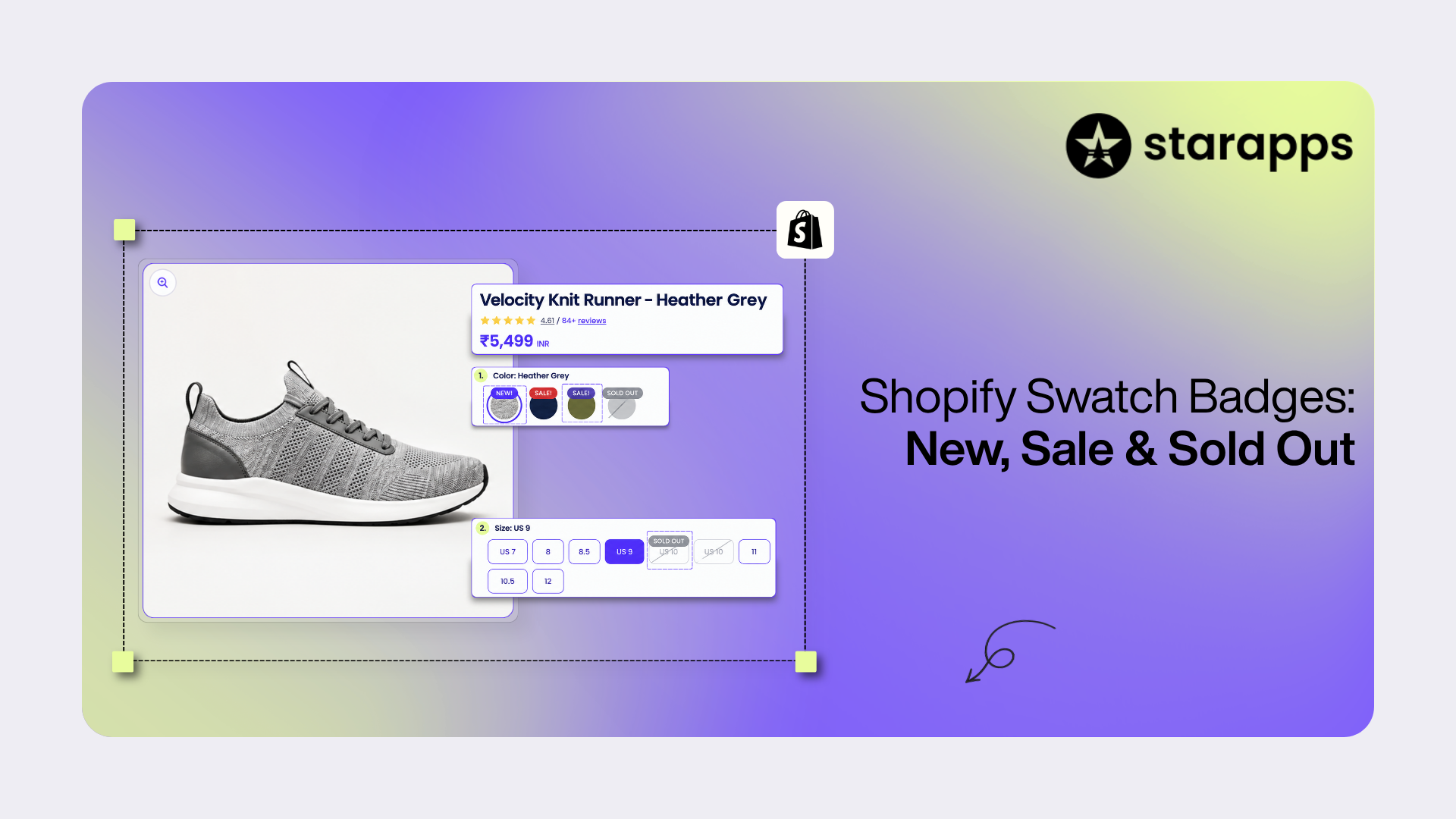

Learn how to add New, Sale, and Sold-Out badges to Shopify variant swatches using theme code, metafields, or apps for clearer product selection and a better shopping experience.
Key Takeaways
- Shopify variant swatch badges are small status labels on individual color or size swatches that show what is new, discounted, or sold out before a shopper clicks.
- Shopify renders swatches natively but does not add New, Sale, or Sold-Out badges to them. You add those through theme code, metafields, an app, or a mix.
- Sold-out state is reliable per variant. Modern themes read product_option_value.available or variant.available to grey out, cross out, or label a swatch.
- Sale state comes from comparing a variant's price against its compare_at_price, so only the variants actually discounted get a sale badge.
- "New" is not a built-in status. A per-variant New badge needs a variant metafield or an app; tags and collections mark whole products only.
- On mobile, keep swatch tap targets at least 44 by 44 pixels and never let a badge shrink them or block selection.
- A swatch app like StarApps' Swatch King adds badges and hides or crosses out sold-out variants across a catalog without ongoing theme edits.
A shopper opens a product page and sees six color swatches. One is on sale, one was added last week, and one has been out of stock for days. Nothing on the swatches says so. They click each one, watch the price change, hit a disabled "Sold out" button, and leave.
A swatch shows one thing on its own: what the option looks like. Everything else a shopper needs- price, status, newness, availability sits on the variant behind it. Keep that hidden until a click, and you slow browsing down, especially on mobile where each extra tap costs you a shopper.
This guide shows how to put variant-level status straight onto the swatch. It separates what Shopify does natively, what needs theme code, what needs metafields, and where an app is the practical route, so you can pick the approach that fits your store instead of copying whatever a tutorial happened to use.
What Are Shopify Variant Swatch Badges?
A variant swatch badge is a small visual indicator, a dot, a corner tag, a strikethrough, or a short text label, placed on or beside a single swatch to show that variant's status.
Three things get confused here, and keeping them apart is the whole point:
- Product-level badges apply to the entire product. A "Bestseller" ribbon on a collection card is product-level and says nothing about individual variants.
- Variant-level status changes from one variant to the next. The red shirt is discounted; the blue one is not. The small is sold out; the large is in stock. This lives on each variant record.
- Swatch-level indicators are how you render that variant-level status on the swatch control itself.
Most Shopify badge tutorials and many apps work at the product level. Put one "Sale" ribbon on a product with ten variants when only two are discounted, and eight of those swatches now carry a false claim. Swatch badges match the indicator to the variant it actually describes.
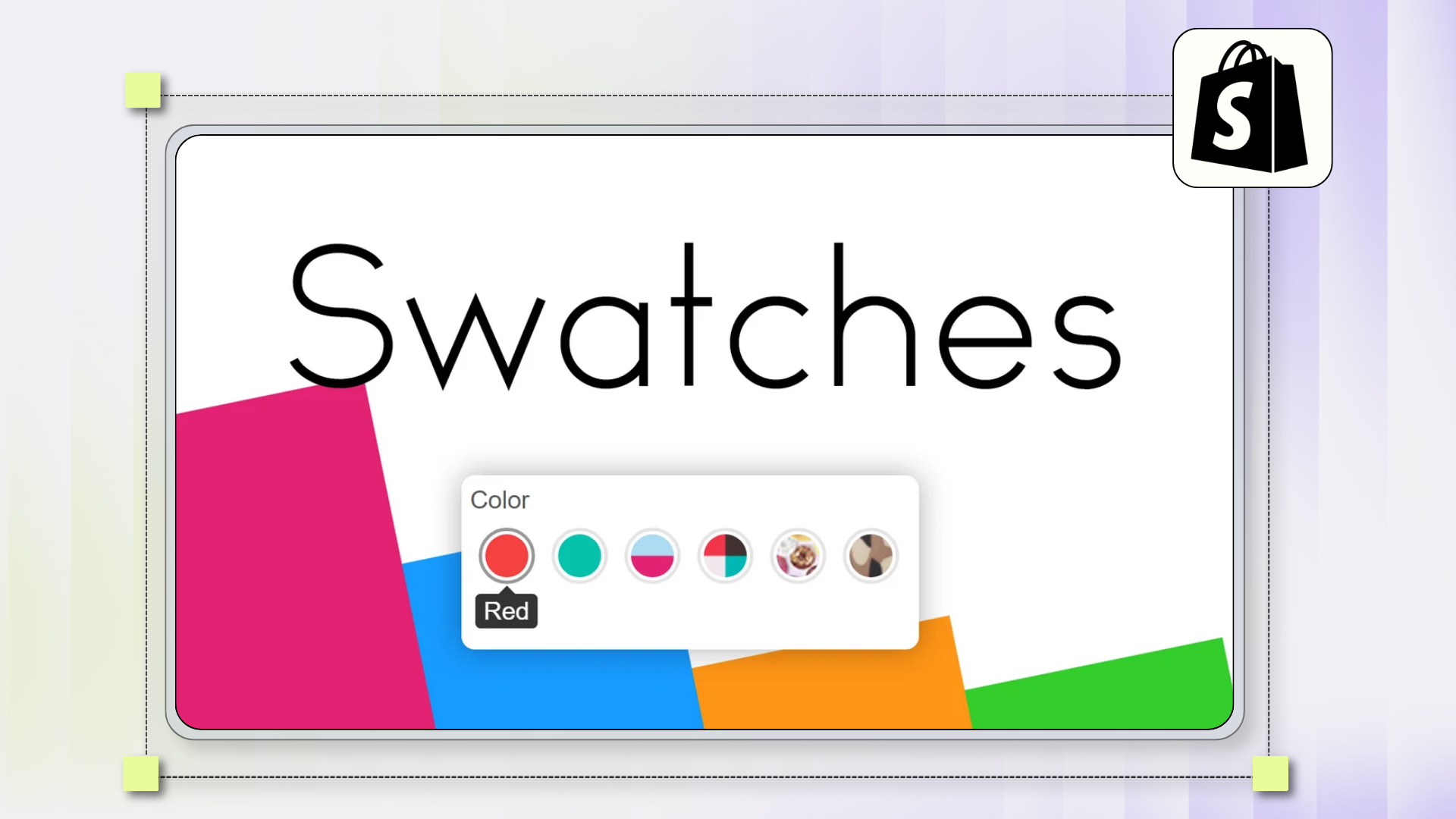
Swatches themselves are native to Shopify. Since the Products 2.0 update, themes render color and image swatches through Liquid's swatch object, and reference themes like Dawn ship a swatch-based variant picker out of the box. The swatch is not the hard part. The badge on top of it is.
Why Add New, Sale & Sold-Out Badges to Variant Swatches?
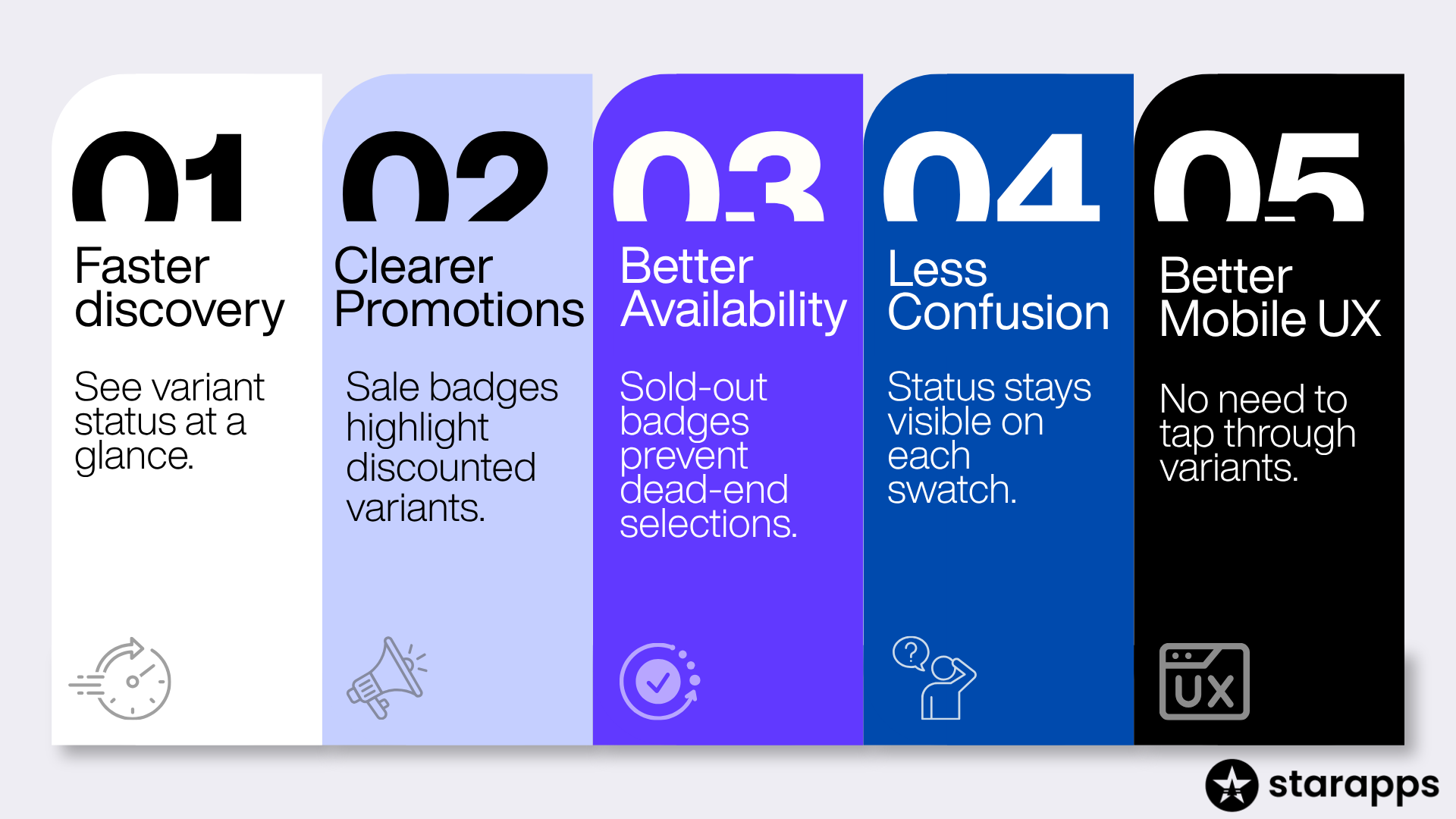
Status badges speed up variant selection and cut the guesswork:
- Faster discovery: Shoppers scan swatches instead of clicking each one to check status.
- Visible promotions: A discounted variant that looks identical to full-price ones gets missed. A sale indicator on that exact swatch draws the eye.
- Clearer availability: Marking sold-out variants up front prevents the dead end of picking an option and hitting a disabled button.
- Less confusion: When status sits on the right swatch, shoppers stop wondering why the price jumped or why they cannot add to cart.
- Better mobile browsing: Tapping through variants to check status is worse on a phone. On-swatch indicators remove the back-and-forth.
One honesty check: badges reduce friction and add clarity, and that is a fair reason to use them. They do not come with a guaranteed conversion or revenue number. Ignore any claim that attaches a fixed percentage lift to a badge unless the store measured it on its own traffic.
How Each Badge Works
Each badge has its own logic and its own failure mode. Treat them separately, because the data behind New, Sale, and Sold-Out comes from three different places.
Low Stock and Back-Orderable are optional. Add them only when the data behind them is accurate, and the extra label helps more than it crowds.
How to add a New badge
A per-variant New badge needs a variant metafield or an app that stores equivalent per-variant data. Tags, collections, and published-date logic mark whole products only.
Shopify has no native "new" status on a product or a variant, so you define what "new" means and derive it. The options, from most to least precise:
- Variant metafields: Create a variant metafield, a boolean or a date, and read it in the theme. This is the only way to flag a single variant as new while its siblings are not.
- Product metafields or tags: Simpler to manage, but they mark every variant of the product. Fine when the whole product is new, misleading when one color is.
- Collection membership: A "New Arrivals" collection checked in Liquid. Also product-level.
- Published-date logic: Compare product.published_at to today and treat anything inside 30 days as new. This expires on its own but still applies to the whole product.
Whichever you pick, decide when New switches off. A badge that never expires trains shoppers to ignore it, and once they ignore New, they start ignoring Sale and Sold Out too.
How to add a Sale badge
A variant is on sale when its compare_at_price is set and higher than its price. Both values sit on each variant, so you badge only the variants that are genuinely discounted.
The check runs per variant:
{% if variant.compare_at_price > variant.price %}
{% comment %} this variant is discounted; render the sale badge {% endcomment %}
{% endif %}
That is the logic, not a drop-in for your theme. Where it lives and how the swatch redraws depends on your theme's variant picker.
Watch three cases where a product-level sale badge gets it wrong:
- Different variants, different prices: If variants have different base prices, read each variant's own price. There is no single product price to trust.
- Compare-at is the signal, not the merchant's intent: Say the blue shirt is 30 USD with a compare_at_price of 40 USD, and the red shirt is a flat 30 USD with no compare-at. Only the blue swatch is on sale. The red one is not, even if the store is "having a sale."
- Only some variants are discounted: This is exactly why one ribbon across the product misleads. Evaluate variant by variant.
Modern themes hold variant data as JSON and update the picker as the shopper selects options, often by pulling a fresh section render from Shopify rather than recalculating in the browser. A sale badge should follow that state, not freeze at page load.
How to add a Sold-Out badge
Detect availability with product_option_value.available or variant.available, then grey out, cross out, or label the matching swatch. Hiding it is possible but usually the weakest choice.
Use availability, not raw quantity. variant.available returns true when a variant can be bought and false when it cannot. Shopify's high-variant tooling also exposes product_option_value.available, which tells you whether a specific color or size still leads to a purchasable variant given what the shopper has already chosen. Shopify recommends the option-value approach for pickers because it scales and reflects in-progress selections. Looping through every variant and reading variant.available still works, but it is heavier on high-variant products.
Two distinctions to keep straight:
- Sold out versus still sellable: A variant at zero inventory can still be available if its inventory_policy is continue, which lets Shopify keep selling as a backorder. If the policy is deny, it goes unavailable at zero. Zero quantity alone does not mean unbuyable, so check availability and policy together.
- Sold out versus impossible combination: "Blue" plus "Small" may be a combination that never existed, which is different from a variant that existed and sold out. Themes handle the impossible combination by disabling or crossing out the option.
You then have four ways to show an unavailable swatch:
- Grey out or disable it so it reads as unavailable but stays visible.
- Strikethrough the swatch or its label.
- Add a "Sold out" label on or beside it.
- Hide it entirely.
Hiding is the one to be careful with. Shopify's current flagship theme, Horizon, has a native "Hide unavailable variants" toggle in the variant picker settings, so hiding takes no code there. But it removes the option from the picker, not from the product gallery, and it erases information a shopper may have come for. Someone looking for that exact sold-out color learns nothing when it disappears, and you lose the back-in-stock signup. Greying out with a clear label stays transparent and keeps the restock door open. StarApps walks through the tradeoffs in its guide to hiding out-of-stock variants.
Should shoppers still be able to click an unavailable variant? Usually yes. Let them select it, then show a clear "Sold out" or "Notify me" state. That is more honest than making the option vanish.
Native, Code, Metafields, or App: What Shopify Can Do Without Help
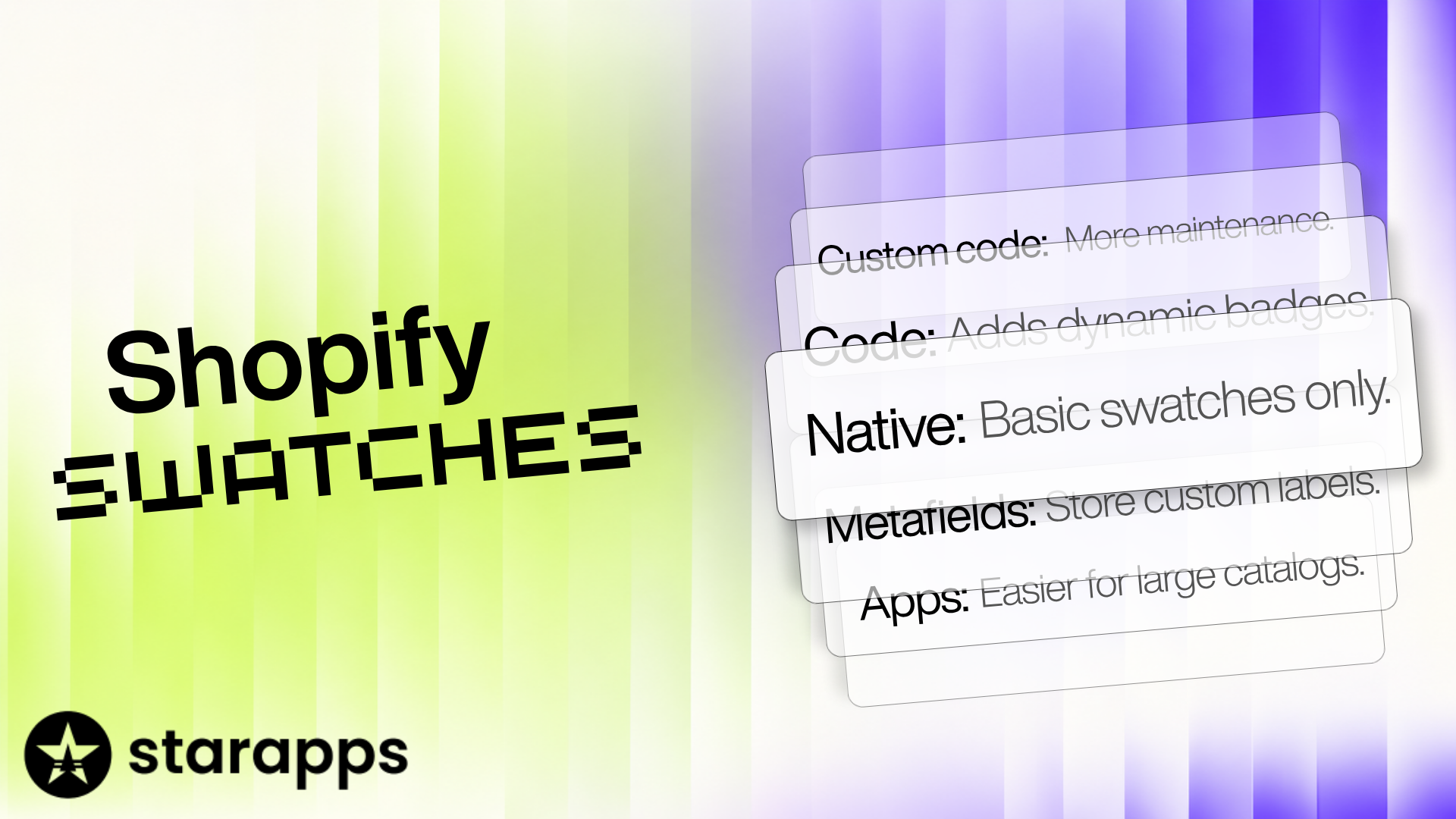
You do not need an app for all of this, and you cannot do all of it natively either. The four layers each cover a different part of the job.
What Shopify handles natively
Swatches render through the swatch object with no code. Some themes, Horizon included, ship a toggle to hide unavailable variants. What you do not get natively is a New, Sale, or Sold-Out badge drawn on a swatch. That is not a built-in feature at any plan level.
What theme code adds
With variant.available, product_option_value.available, variant.price, and variant.compare_at_price, a developer can build accurate per-variant sold-out and sale indicators. Newer themes drive the picker through JSON and JavaScript, and current reference themes use web components, so the work lives in that script and section layer rather than in Liquid alone. Older Dawn versions let you target sold-out states with CSS classes, but that is theme-specific. Never treat one theme's markup as universal Shopify behavior.
Where metafields fit
Metafields fill the gaps Shopify leaves, mainly a per-variant New status and any custom label. They store the data. You still need theme code or an app to read that data and render it on the swatch.
When custom code starts to hurt
Custom badges get expensive to maintain when you need them to update live as options are selected, behave the same across hundreds of products, hold up on mobile, and survive every theme update. The maintenance, not the first build, is what usually sends merchants to an app.
There is no single right answer. A developer with a small catalog can keep this in the theme. A large catalog, or a team with no developer, is better off with an app.
How a Shopify Swatch App Can Help
An app solves one specific problem: keeping accurate, per-variant status indicators working across a whole catalog, through theme updates, without a developer re-checking markup each time.
Reach for one after you have decided you want swatch badges, confirmed the theme cannot manage them at your scale, and weighed the upkeep of custom code. At that point, StarApps' Swatch King, listed as Color Swatch King / Variant Options Swatch King, is one established option, and its variant options guide documents the setup.
Its relevant, verifiable capabilities:
- Visual variant selection with color swatches, image swatches, buttons, and dropdowns in place of default selectors.
- Sold-out handling that hides or crosses out out-of-stock variants across swatches, buttons, and dropdowns.
- Swatch add-ons for price, badges, ratings, and low-stock alerts on swatches.
- Swatches on collection and search pages, not just the product page.
- Bulk management to upload swatches by CSV and migrate from another swatch app.
- Theme compatibility across a range of themes, with Shopify Markets support.
An app is worth it for a large catalog or a team without developer time. It is overkill for a two-product store a developer can handle in an afternoon. Nothing in this guide depends on installing one; the native and theme routes stand on their own.
Variant Swatch Badge Best Practices
Badges only work when they stay readable and honest. The reasoning behind each rule:
- Keep badges small but legible: The swatch still has to show its color or image, so a badge that covers it defeats the purpose. One too small to read defeats it the other way.
- Show one status per swatch: New, Sale, and Low Stock stacked together is noise. Pick a hierarchy and surface the top one.
- Never rely on color alone: A red dot means nothing to a colorblind shopper or in poor lighting. Pair color with a shape, an icon, or a word.
- Make sold-out obvious: A faint grey gets missed. If a variant cannot be bought, the swatch should read that way at a glance.
- Keep the selected state distinct from any badge: A shopper must always know which swatch is active without decoding a badge next to it.
- Meet contrast standards: Aim for at least a 4.5:1 ratio between badge text and its background, the WCAG AA minimum, so the label is readable for low-vision users, not just on your monitor.
- Expire the New badge: If everything is always new, nothing is.
- Stay consistent across products: Shoppers only learn your indicators if they behave the same everywhere.
- Protect the tap target: A badge must never shrink the clickable area of a swatch.
Mobile UX Considerations
Phones are the hard case for swatch badges, and the place they most often break.
- Tap targets: Keep each swatch at least 44 by 44 pixels, the minimum both Apple and Google publish for touch controls, and do not let a badge eat into that area.
- Spacing: Crowded swatches are hard to hit with a thumb. Give them room, and give badges room inside that.
- Readability at real sizes: A "Sale" label that is crisp on desktop can blur on a phone. Test at actual mobile width, not a shrunk browser window.
- Wrapping versus scrolling: Many swatches on a narrow screen either wrap to more rows or scroll sideways. Pick one on purpose and make sure badges survive it. Scrolled swatches can push status off-screen.
- Long variant names: "Midnight Navy Blue Heather" behaves nothing like "Blue" in a tight column. Plan for long labels beside badges.
- Selected and sold-out states: Both have to read at a glance, since mobile shoppers move fast.
Badge Hierarchy: When a Variant Is Both New and On Sale
A variant can qualify for more than one badge at once. A new color can also be discounted; a discounted color can be nearly gone. All three on one swatch is clutter, so set a priority:
- Availability first: Sold out or low stock overrides everything, because it decides whether the shopper can buy at all.
- Sale second: A live discount is the strongest purchase motivator.
- New third: Useful context, least urgent.
Show the top applicable badge on the swatch and put anything else elsewhere on the page rather than piling it onto one small control.
Common Mistakes
- Product-level badges on every variant. One "Sale" ribbon across all swatches when a single variant is discounted.
- Sale status read from the product, not the variant. Check compare_at_price per variant instead of assuming the product is on sale.
- Hiding sold-out information entirely. It frustrates shoppers looking for that option and kills back-in-stock capture.
- Color as the only signal. Fails for colorblind users and in bad lighting.
- Badges too small to read, especially on mobile.
- Too many indicators at once. New, Sale, Low Stock, and a rating on one swatch is noise.
- Stale badges. A badge frozen at page load, blind to selection or stock changes, misleads.
- Desktop layouts that break on mobile. Badges that sit neatly on a wide grid collapse in a narrow column.
How to Choose the Right Implementation
No column wins outright. A developer-led store that wants full control leans on theme code. A lean team with a big catalog leans on an app. Metafields are a component, not a standalone answer: they hold the custom data that code or an app then displays.
Frequently Asked Questions
Can Shopify variant swatches show New, Sale, or Sold-Out badges?
Not by default. Shopify renders swatches natively but does not attach status badges to them. To show New, Sale, or Sold-Out on a swatch, you add theme code, a variant metafield, a swatch app, or a combination. The swatch itself is native; the badge layered on top is the custom part.
How do I add a sale badge to a single Shopify variant?
Compare that variant's compare_at_price to its price. When compare_at_price is set and higher than price, the variant is discounted and its swatch can show a sale badge. Both values live on each variant, so the check runs per variant and only genuinely discounted variants get flagged, even if other variants stay full price.
How do I show sold-out variants on Shopify swatches?
Read product_option_value.available or variant.available to detect which variants cannot be bought, then grey out, cross out, or label the matching swatch. Greying out with a clear "Sold out" label usually beats hiding the variant, because it keeps the option visible for interested shoppers and lets you offer a back-in-stock signup.
Can different Shopify variants have different badges on the same product?
Yes. Sale and sold-out status come from per-variant data, so each swatch carries its own badge independently. One color can show a sale badge while another shows sold out and a third shows nothing. This per-variant accuracy is the main reason to use swatch badges instead of a single product-level ribbon.
Can I add a "New" badge to individual Shopify variants?
Only with a variant metafield or an app that stores equivalent per-variant data. Shopify has no native "new" status, and tags, collections, and published-date logic all mark the whole product, not one variant. If you need a single color flagged as new while its siblings are not, a variant metafield is the only native way to do it.
Do I need an app to add badges to Shopify variant swatches?
No. With a developer and a manageable catalog, theme code plus metafields can add per-variant sale, sold-out, and new badges. An app becomes the practical choice when you lack developer time, run a large catalog that needs consistent badging, or want the setup to keep working through theme updates without someone re-checking the markup each time.
How do I hide sold-out Shopify variants without editing theme code?
Some themes include a native toggle. Shopify's Horizon theme has a "Hide unavailable variants" setting in the variant picker options. It hides sold-out variants from the selector but not from the product gallery, and hiding removes information some shoppers came for, so greying out with a label is often the better call than hiding.
What is the difference between a sold-out variant and an unavailable variant combination?
A sold-out variant exists but has zero purchasable inventory. An unavailable combination, such as "Blue" plus "Small," is a pairing that was never created or is out of stock. Themes usually disable or cross out impossible combinations as the shopper selects options, which is different from marking a real variant as sold out.
Should a variant show a badge if it is on sale and new at the same time?
Show one badge by priority, not all of them. A workable order is availability first, then sale, then new, because availability decides whether the shopper can buy at all and a live discount motivates more than newness. Put the top applicable badge on the swatch and surface any others elsewhere on the page.
Do variant swatch badges slow down a Shopify product page?
They can if built poorly, through heavy scripts, oversized badge images, or an app that loads more than it needs. Keep indicators lightweight, use CSS and small assets instead of large images, and pick an app built to work within Shopify's theme engine. Well-implemented badges add negligible weight to the page.
Does FAQ schema still help after Google retired FAQ rich results?
Yes, for answer engines. Google retired the FAQ rich result in Search on May 7, 2026, so FAQPage schema no longer produces the expandable Q&A panel in Google results. The markup remains a valid schema.org type that Google still parses, and ChatGPT Search, Perplexity, Gemini, and AI Overviews read it as a Q&A source, so it stays worth including for AEO.
Heading

End-to-end traceability
To ensure regulatory compliance, you must have a complete overview of your products from production to shipping. Book a demo to see how Katana can give you full visibility of your operations.

.png)

.svg)

.svg)

.svg)
.png)